GIMP Tutorial 2
By: DemonOfSarila
Say hi to my overly boring and plane page for my GIMP tut. Yes, this is far from the best styling I can do, but the code was written really really quickly so I could focus on re-writing the tutorial as quickly as possible. Don't worry, whenever I finish a site layout and like it, it will get fully styled and end up in there.
Content and pictures are either mine or marapets. if it's mara's, get it from the site. if it's mine, no stealing. Also, some of it is GIMP, just screen shots of the program.
Note - this is the GIMP Tutorial 2, because I lost the first one when I lost my marasite. This is my re-write of that first one. I would still call this a first version, meaning it probably has typos and stuff. Please MM me about any question, comments, feedback, etc. (do not MM me saying the layout sucks, because it's not supposed to be any good).
Preview Of Final Product
This tutorial will help you make something similar to this (hopefully a little better though):

Summary Of Tutorial
The basic summary / point / idea of this tutorial is to take a picture with a white background (like all the pictures on marapets), and first select this entire background with the Fuzzy Select Tool.
Once it's selected we'll use the eraser to go over the whole picture. It will erase the white part while leaving what you want from the picture.
Then we'll go back and fix any small problem spots with the pencil and eraser. All in GIMP, which is a free program. This tutorial also briefly talks about using gradients for a background, and what file type to save it out in before uploading you image and includes the code needed to use your images in clubs and siggies since marauploads is currently broken.
Step 1: Download GIMP
The first step is making sure you have GIMP on you computer. To get GIMP go to GIMP's Official Download Page and click on "Download GIMP x.x.x - Installer for Windows X and above" (when I wrote this it was GIMP 2.6.3 and Windows 2000) if you have Windows whatever and above. If you don't you're going to have to poke around and see if they have and installer for you (and yes Vista and XP are above 2000).
It take a little bit to download, but once it does, you just install it by opening the file. I would use custom install. Let it install in the default file path, give all the GIMP related files, and if you don't have PhotoShop you should probably give it .psd files too, and desktop short cut (opens program from desktop) and quick launch icon are up to you. I did just desktop shortcut.
Step 2: Get You Pictures Together
The next thing is to get pictures to work with. Simply create a folder somewhere on the computer, like a folder called "MaraPets" in your My Pictures folder (right click > New > Folder in my pictures, and then type it). Now in your web browser, go to like the pet colors or wishlist or where ever, and when you find something you want, right click on it and pick the option "Save Image As..." or something like that... and go to you folder (my pictures is in my documents) and save it there. Do that over and over till you have the pictures you want, or at least a picture you want. As long as you have at least one, the we're good.
Step 3: Open GIMP
Open/run GIMP. The next picture is GIMP, the first time you run it, is hsould come up with these three windows (say hi to my pretty new desktop):

Basically just read that picture. The tall window on you left is the Main window or the Toolbox as it's now called. I circled at least most of the tools we're going to be using. The settings of the current tool are right above my smiley face in the Main window.
The little window in the middle is where your first picture will go when you open or create a new one.
The big tall window on your right is what I call the Layers window. The top half normally has your layers in it. The bottom half has some options in it. The thing near the middle with the squiggle will be important later.
IMPORTANT: If at any time you X the Layers window and it disappears, in the window for your picture (the middle one in my screen shot), try going (up near where it says like File, Edit, etc) "Windows > Recently Closed Docks > Layers, Channels, Paths, Undo, Br...". That should bring it back. MM me if it doesn't.
Step 4: Opening Documents
After GIMP opens, open one of your pictures from marapets with it (press and hold ctrl and press O, also known as ctrl+O). Now you have to find the folder that you save all those marapets images in. I would recommend picking just one at open for the moment, but you can open more if you want to.
Now, to open a new document with ctrl+N which brings up this thing:

Now I think this:

is how big I made mine. Doesn't have to match perfectly, you can use whatever size you want, but if you have no idea, that's a suggestion.

Yay we have a new picture, and part of my old desktop.
If you've never used GIMP before, take a little while to explore it and just play with things. I know you may not really not know what you're doing, but just press a button and see what it does. Then try another one. Use some of the tools on a blank new picture. Really, one of the best way to learn this stuff is to play with or try stuff things yourself.
Step 5: Paste In A Pet
Ok, you should have one of your pictures from marapets open by now, so find it. Now to make sure it's all selected, use ctrl+A and then to copy use ctrl+C on the marapets picture, and then ctrl+V on the new one pastes it for you. Now, in the Layers window, if you can't click on another layer to go to it, just simply click new layer (small page looking button near the middle of the layers window).
Ok, now at the bottom of the window of the document/image you just copy and pasted to, there's a combo box with a number then a % in it. This is the zoom (points to picture below)

Just pick one of the numbers (I'm using 400%) or type something into the part beside the arrow.

Step 6: A Layer For Later
Using the layers menu, make a new layer by clicking the "New Layer" button about in the middle of the Layers window. You can rename it if you want. Put it between the pet and the background layers. In the layer, use the Fill Bucket tool to fill it in with some color/texture that is very different from your pet. If you've done this before or know how to, a gradient will work nicely for this. Don't worry, I'll explain those later.
Step 7: Fuzzy Tool and Threshold
Now, you want to use the "Fuzzy Select Tool" in the top roll, see picture.

Below all tools in the main/tools menu, there are some settings for this tool. The first check box should not be checked, the second should not be checked, third one doesn't matter for what we're doing really, and the last one should be unchecked. You can play around with them if you want to get a good understanding of what they do (it's better if you try than to have me try to explain what they do, just try things), but you don't have to.
Now, something important is the Threshold in the settings part. If you have the Antialiasing on, something like 50 or so should work. If you have the Antialiasing off, then set it high, like 120 or 130 high. (I recommend Antialiasing off)
Either way, those are just a starting value, different pets need different number for that. Like if one has a black outline and another has a light pink outline they'll need different thresholds. Basically pick one, and click on the white stuff. (hover over the next few pictures to see if they're too low/high/etc)


You just have to play with it until it looks right. About right:

Now, to actually test your tolerance, go over to the tools and pick the eraser. In it's settings, there are two important things, the Opacity (set to 100%), and the Scale. Turn up the scale so that the tool gets bigger. Now, go over your picture with it, and keep the mouse button held down for a moment and look at it. Hover over my new pictures to see if they're what you are looking for or not (these were taken with GIMP and 400% and the size wasn't changed after that).


Believe it or not, that last one is about what you want at this point.
Once it looks about right or close to it, you need zoom out and look at it. Set the zoom to 100% and use ctrl+shift+A to make the dotted line thing go away. Remember that layer that I said was for later? Well, later is now. To make sure that it's cut-out really nicely, change the color of the layer (like with the pain bucket fill thing) and look at how the edge of your pet looks, and then change it again and look again. It might have a few "problem spots" like for example the ear-rings that my punk chibs here are going to take a little bit of detail work. But of you're happy with the edge of most of your pet, they're ready to move one. If no, the use ctr+Z to undo things until the white part is back and change the threshold of the fuzzy select tool.
Step 8: Fuzzy Brush Modes
There are some spots like under the left most hair on an Addow's head: (or between the xmas addow's tail and body)
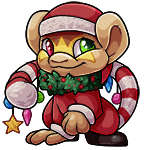


To deal with omething like that, go back to when the white background was there (like right before you erased it), and then in the fuzzy select tool's settings, one setting is called Modes and then has some red box-things:

pick the second one (like in my picture) and then click on the other little white part. If you click a few times, and things really get out of hand with what is selected, hit ctrl+shift+A. Then click each white point you want gone only once. If it won't work for a small part, then that is what the detailed work with the eraser and pencil are for.
Step 9: Detailed Work - Pencil and Eraser and Opacity
Back to what I was typing before I went off on a tangent, brush and eraser.
For this part, we need nothing selected, hit ctrl+shift+A to do that.
Under both the eraser and the pencil there is a setting called Opacity. Opacity is basically see-though-ness. An eraser with full opacity fully erases fully. An eraser with half opacity erases half way. If you use a half opacity eraser where you did before, it leaves that part of the picture at a quarter opacity. And you thought you would never need fractions outside of school. Don't mind me, I'm being silly.
Ok, if that last paragraph makes no or little sense to you, then see? I told you it was easier if you just play with things. If that made no sense, to play with the opacity first save your picture how it is now in GIMP's file format (ctrl+S, in the box there's click Select File Type, and choose GIMP XCF image. If your Save button is missing, make the Save Image window bigger, or hit enter once you're typed in a name for this thing). Once it's saved, then find the eraser on the tools menu (pink square/block thing). Find the Opacity and change it to like 50-60%. Now, use the tool on you pet a few times.
You can also try change the opacity without undoing and clicking more times.
Alright, once you think you understand opacity (MM me if you know how to explain that better), you can use it. You can also play with it for the brush tool. When you're done playing, ctrl+Z over and over until it's back to before you played with it. If it stops going back, close without saving and open the one you saved in case this happened.
Step 10: Using Opacity
Ok, if your pet has spots like that big earring on your left on the punk chibs where there's a few white pixels left, then zoom in at least 400%, set the size to like a few pixels (click and change the Brush setting to a small circle one, something like circle 3 or circle 1 at scale of 1.00 should work fine), make sure the opacity is on 50% or something, and go for it. I usually start with some settings, and then if it's too big, I ctrl+Z it, make it smaller, and try again. If it erases too much, I undo with ctrl+Z and lower the opacity. If it doesn't erase enough and I feel like I'm having click way too many times to get what I want, then I undo most of it and raise the opacity some and try again. Also, make sure you stop and zoom out to 100% often to see how things actually look.
For the pencil, it's really similar, only you're adding color, not taking it away. If you need to, save and then play with it. I'll be honest with you, things like opacity I figured out by myself just by opening the program and playing with things to see what they do. I didn't have anyone explaining things to me for a long time. I'm not saying there's anything wrong with good tutorials, and using them can be really helpful; however, sometimes you just have to try something and see it in action to really understand it.
Now, with the pencil we also have to worry about colors. With many pets it's easy, pure black is what you want (the blackest black there is). However on some pets you don't. For the ones that aren't black outlined, we're going to use the Color Pick Tool to get he right color.
The Color Picker is the eyedropper right under the Fuzzy Select. It's settings should be on Set foreground color with all check boxes unchecked. Now, make sure you're zoomed in and find the darkest color in the lines of your pet, and click on the darkest pixel you can see. you can pick one for the outside or inside, as long as it's part of a line. Now, some pets have more than one color for their outlines. Just make sure you use the right color for the right spot.
Now, once you have your color, opacity, and size (Brush and Scale) set correctly, double check that you're in the right layer and go at it. You don't have to make all/any the lines 100% or fully opacity/dark, and you don't have to go over most of the pet. Only little spots that really need more lines, like some part of of the punk chib's earrings. And again, stopping and zooming out to 100% often to see how things actually look is still very important.
Step 11: Break
Gosh all that and we still haven't gotten to gradients. If you haven't taken a break by now, now might be a good time.
NOW IS ALSO A GREAT TIME TO SAVE YOUR PICTURE!! SO SAVE IT!! NOW!!
Details for saving it how it is now with layers (instead of a flat image like .png or .jpg) are in "Step 7: Detailed Work - Pencil and Eraser and Opacity"
Step 12: Gradient Backgrounds
Alright, this step is about making gradients, like for a background behind your pet (note gradients are not the only type of background that is possible). You can also add other pets or pictures (like toys/pearls/books/etc) of other things from marapets to your siggie before or after this (just let them each be in their own layer). Your choice. Just remember, your first picture doesn't have to be blow-everything-out-of-the-water and prefect, it can be very simple and such. You should see the first siggie I made.... let's just say it's worse than what you're doing... a lot worse.
Fist you need to make a layer for the gradient to be in. It needs to be above the background layer. You can put in above the "for later" layer, or you can just lick the eye icon to hide the "for later" layer. It also needs to be under the pet/stuff layer(s).
The Gradient Tool is the square shape with the fading thing in it. When you click on it, you get it's setting, as usual. Some points of interest right off the bat:

The first is Shapes and Opacity (I underlined them), Shapes is pretty simple, but can have some cool effects.
The second it the Gradient Button. If you click on it, you can see all the pre-made gradients that GIMP has. Look through all of them. If you like one of those, then just pick it, and double check that you're in the right layer, then click and drag the mouse across your picture (start on some spot in the picture window) and it will make the gradient. If it isn't prefect, just click and drag again. Some gradients go to, come from, or both completely clear, so if you pick the right ones, you can really mix it up. Again, just try something and see what happens. Playing with things is good for things like this.
Step 13: Custom Gradients
I'm sure some people saw this coming, but if none of those gradients were what you had in mind, the you can make a custom gradient.
First, make sure you're on the gradient tool, then in the gradient tools setting, click the Gradient button to open that little window thing. In the corner, we have the Open the gradient selection dialog button:

Once you've clicked that, look at the Layers window. The bottom half should have the the Gradients Dialog there (it will have all the gradients. At the very bottom there are buttons, one is called make new gradient. All I can say there is play with it, because I have no idea what you want for a gradient background.
(the picture in the background is an example of how you can get crazy with the gradients that are already there... ok, really it's me being bored with the gradient tool thing..... Neon Rainbow Doooom! ^-^ anyway.... it's still and example of what you can do.)
You can also add text by using the Text Tool (big letter A icon).
Step 14: Saving, Again
Alright, if you save using the GIMP format (again in step 7) then you can easily make small changes or add to it later if you want it. The GIMP format should only be as a back-up on your computer, uploading it to places like photobucket won't work.
To upload it some place to use on marapets, save in either gif, png, or jpg. As far as which file format to save it in, .jpg is good for smooth colors and photos from a camera, but not sharp edges. The file type .png is great for if you have abrupt color changes, but isn't so great for very realistic photographs. What do I mean by sharp edges? Sharp edges are where the colors change quickly and abruptly. The next picture (by Mollyme12 - not by me) is a picture with sharp edges. Look at it closely. It was saved out in jpg, so it's kind of pixely. The colors would look flatter if it was saved out as png file. Example (by Mollyme12) of sharp edges and what jpg does to them:

The file format .gif is really small in file size, but only has a limited number of colors, so many times it won't look good. The file format .bmp isn't usually a good choice because it has very large file sizes, which is bad if you're going to upload it somewhere. If you're not sure about which file type to use to upload it in, then try saving it out in more than one. Save it out in a jpg, then a png, and then a gif. Once they're saved, look closely at each of them and see if they look messed up. Just remember, there is no end all one file type that is best for everything, they all have pro's and con's. You just have to figure out which one is the best match for your picture.
Once it's been saved out, just upload it somewhere, like photobucket. Once it's uploaded you can use on club in your forum siggie, where ever.
for clubs: (the line breaks are important)
<img src='
URLHERE
' />
for siggies:
[img]http://images.marapets.com/avatars/invisible.gif[/img][img]URLHERE[/img]
For both, replace the URLHERE with the Drink Link or URL of the picture (it will end with the name of the picture).
Stuff Stuff
Sorry if the number for the steps aren't prefect, I've been up most the night, so I'm kind of out of it. I know this thing still needs editing, but like i said, i wanted to get it uploaded as soon as possible.
Ok, um, I do not own GIMP or marapets in any way. Please don't steal my content/pictures (you can have the code this time... it too all of five minutes to write). If you want to give someone part of my tutorial, please just give them the link to it.
By: DemonOfSarila
Questions/Contents/Confused?!?? PLEASE MM me right away and I will try my best to help you as soon as I can. Please note this is the first version of my re-write, so it's probably full of spelling/grammar problems and typos.
And just because I'm feeling random, we're ending this with my funny/weird picture/sig thing it:
